

Our editors at EBusiness Reviews believe a methodical start makes email marketing far easier to manage. This campaign monitor tutorial for beginners walks marketers, small business owners, and creators through building, sending, and evaluating permission-based email campaigns from the ground up.
Email marketing platforms act as central hubs for audience addresses, responsive message design, and engagement reporting. Learning how they fit together helps you avoid the setup mistakes that quietly damage deliverability.
Campaign Monitor is an email marketing platform built to manage subscriber data, send promotional messages, and schedule automated sequences. Knowing how to handle imports, layouts, and delivery timing keeps your sending respectful of recipient preferences and protects your sender reputation.
Quick verdict: Campaign Monitor earns an overall score of 7.6/10 for email marketing. It suits teams that want straightforward template customization and visual campaign scheduling without a steep learning curve. It is less suited to teams that need advanced multi-channel communication or complex data warehouse queries.
| Metric | Details |
|---|---|
| EBusiness Reviews score | 7.6/10 |
| Best for | Marketers who want visual template assembly and clear subscriber segmentation |
| Not ideal for | Organizations that need multi-channel customer communication such as phone and chat |
| Key strengths | Visual design tools, list segmentation, and subscriber management |
| What to check before buying | Sender requirements and contact tier thresholds on the official vendor website |
1. How EBusiness Reviews Evaluated Campaign Monitor
This review examines what Campaign Monitor is designed to do, who it serves, and how it compares with similar tools. We used seven EBusiness Reviews criteria: features, ease of use, pricing and value, integrations, audience fit, support, and competitive position. Plans and prices change often, so confirm current details on the official website before purchasing. This article was researched and drafted with AI assistance, then reviewed and edited by the EBusiness Reviews Editorial Team.
2. Preparing Before You Start Your Email Setup
Gathering brand assets and verifying your sender domain before logging in prevents avoidable delays. Email platforms require domain authentication records, set through DNS, to prove you own the address you send from. Establishing this identity with inbox providers is a foundational step.
Collect your visual identity elements before drafting any message. High-resolution logo files, exact brand color codes, and approved fonts keep every email consistent, and consistency helps recipients recognize your messages instantly.
Build your list only from people who have given clear permission. Purchased address databases or scraped contacts violate acceptable use policies at major email vendors. Confirming explicit consent keeps bounce rates low and reduces spam complaints.
3. Six Core Steps to Get Started

A consistent sequence of actions helps teams produce reliable campaigns and avoid skipping essential quality checks.
3.1. Step 1: Account Setup and Sender Authentication
Start by entering your company details, physical mailing address, and reply-to addresses in the main administration area. Commercial email rules require a valid sender identity and postal address. Configuring a custom sending domain with SPF and DKIM authentication shows receiving mailbox providers that your messages are legitimate.
3.2. Step 2: Creating and Segmenting Subscriber Lists
Import permission-based contacts into separate lists using clean CSV files. Map key profile fields such as first name, company, and signup date carefully during import. Custom data fields can store useful details like purchase history or content preferences.
Grouping contacts into segments lets you send targeted messages instead of one generic broadcast. Segmenting by interest or past engagement tends to keep open rates healthy. When subscribers reply, answering promptly through your customer service process keeps readers engaged over time.
3.3. Step 3: Designing Email Layouts
Choose a prebuilt template or start from a blank layout in the drag-and-drop builder. Place structural blocks such as headers, multi-column text areas, images, and call-to-action buttons. Leave enough whitespace between elements so paragraphs stay readable.
Check that your design adapts to both desktop and compact mobile screens. Preview modes show how font sizes and columns stack on narrower viewports. Make sure buttons are large enough for mobile readers to tap comfortably.
3.4. Step 4: Configuring Automation Sequences
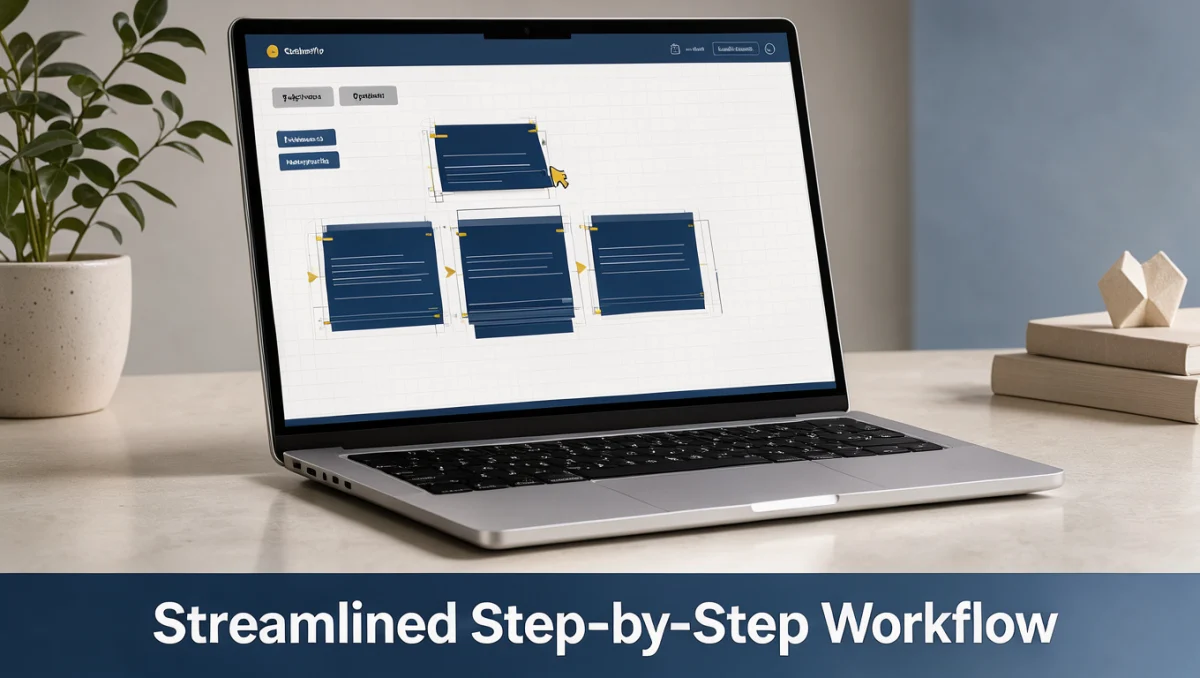
Automated journeys send triggered messages when subscribers meet specific conditions, such as joining a list or making a purchase. Welcome sequences introduce new subscribers to your mission, highlight your best resources, and set expectations for email frequency. Automation delivers progressive content without manual sending for every message.
Add logical branches based on subscriber behavior. For example, sending a follow-up resource to readers who clicked a link keeps the message relevant. Map each trigger and delay carefully on the workflow canvas before activating the sequence.
3.5. Step 5: Testing and Pre-Send Checks
Send test emails to several private inboxes across different providers before every live broadcast. Click each link to confirm tracking parameters work and landing pages load correctly. Review personalization tags such as first names to avoid awkward blank fallbacks.
Inspect your subject line and preview text in both mobile and desktop views. A clear subject line states what the message contains, while preview text adds supporting context. Look for formatting errors or broken visuals before scheduling the send.
3.6. Step 6: Reviewing Campaign Metrics
Check reporting dashboards a few days after delivery to gauge how recipients responded. Track delivery rate, open rate, unique click-through rate, unsubscribe rate, and spam complaints. Comparing results across sends shows which topics attract your audience.
Examine click maps and link summaries to see which calls to action drove action. Apply these findings to button placement and copy in future campaigns. Reviewing engagement trends regularly helps you keep your list healthy over time.
4. Best Practices for Email Marketing Workflows
Routine maintenance keeps your subscriber lists engaged and protects your sender reputation over the long term.
4.1. Maintain Routine Audience Hygiene
Periodically remove subscribers who have not engaged for an extended period. Repeatedly emailing inactive inboxes harms your standing with mailbox providers. Automated reactivation campaigns can invite inactive readers to confirm their interest before you remove them.
4.2. Refine Through Split Testing
Run split tests on single variables to learn which content approaches resonate. Try two subject lines on small sample segments, then send the better performer to the rest of your audience. Testing one variable at a time gives you clearer conclusions.
4.3. Standardize Production Checklists
Document a pre-flight checklist that team members review before every send. Verify legal footer details, working unsubscribe links, image alt text, and correct audience segments. Standard procedures prevent accidental sends to outdated lists.
5. Common Mistakes to Avoid
Avoiding common missteps saves time and protects your business reputation.
5.1. Neglecting Image Optimization and Alt Text
Oversized image files make emails load slowly on mobile networks. Resize images to appropriate dimensions before adding them to your template library. Concise alt text ensures readers with images turned off still understand your message.
5.2. Overcomplicating Visual Design Structures
Intricate multi-column layouts with conflicting typography can confuse readers and break in older email clients. For important announcements, clean single-column layouts ensure consistent readability. A clear visual hierarchy helps readers absorb key points quickly.
5.3. Inconsistent Sending Schedules
Sporadic blasts after months of silence can lead to higher unsubscribe rates and spam reports from surprised recipients. Sending daily promotions can cause inbox fatigue. Choose a steady, predictable schedule that matches what subscribers expected when they signed up.
6. Frequently Asked Questions
How should teams prepare subscriber data before importing?
Clean your contact spreadsheet by removing duplicate rows, fixing invalid entries, and standardizing column headers. Confirm that every subscriber gave direct opt-in permission to avoid delivery problems and account warnings.
What determines how often an organization should send newsletters?
Content relevance, team capacity, and audience expectations shape the right frequency. Monthly or biweekly schedules suit educational content, while organizations with frequent promotions may send weekly.
How can creators make sure templates render properly on every device?
Use responsive layouts that stack columns vertically on phones. Send test messages to multiple mobile and desktop email apps to confirm spacing, font sizes, and buttons work everywhere.
What should marketers evaluate before choosing a pricing tier?
Consider projected list size, the complexity of automations you need, and how many administrative users require access. Confirm contact limits and sending volume thresholds on the official vendor pricing page.
7. Final Verdict on Campaign Monitor
Campaign Monitor provides a reliable, accessible platform for creating polished email campaigns, organizing contacts, and measuring results. It emphasizes straightforward design editing and clear segmentation tools that help teams launch emails without heavy technical hurdles.
| Criterion | Score /10 | Reason |
|---|---|---|
| Features | 7.5 | Offers core list management, a visual design builder, and automation paths. |
| Ease of Use | 8.5 | Intuitive drag-and-drop tools require minimal technical onboarding. |
| Pricing and Value | 7.0 | Tiered pricing depends on audience size; confirm contact tiers on the official site. |
| Integrations | 7.5 | Connects with common productivity tools; check specific options on vendor listings. |
| Audience Fit | 8.0 | Well suited to small businesses, marketing teams, and content publishers. |
| Support | 7.0 | Support options vary; verify current availability on the official website. |
| Competitive Position | 7.5 | Competes with Mailchimp and Constant Contact with a strong focus on clean design. |
EBusiness Reviews overall score: 7.6/10.
Freelancers and boutique agency teams will value the straightforward visual campaign builder and predictable layout options. Marketing managers who want focused email publishing tools without bloated enterprise modules will find the interface approachable. Organizations that need advanced omnichannel communication or heavy database modeling should look at broader enterprise marketing platforms instead.
Have questions about your email marketing workflow? Explore our Customer Service coverage or get in touch with our team through the contact page for ongoing updates and guidance.