
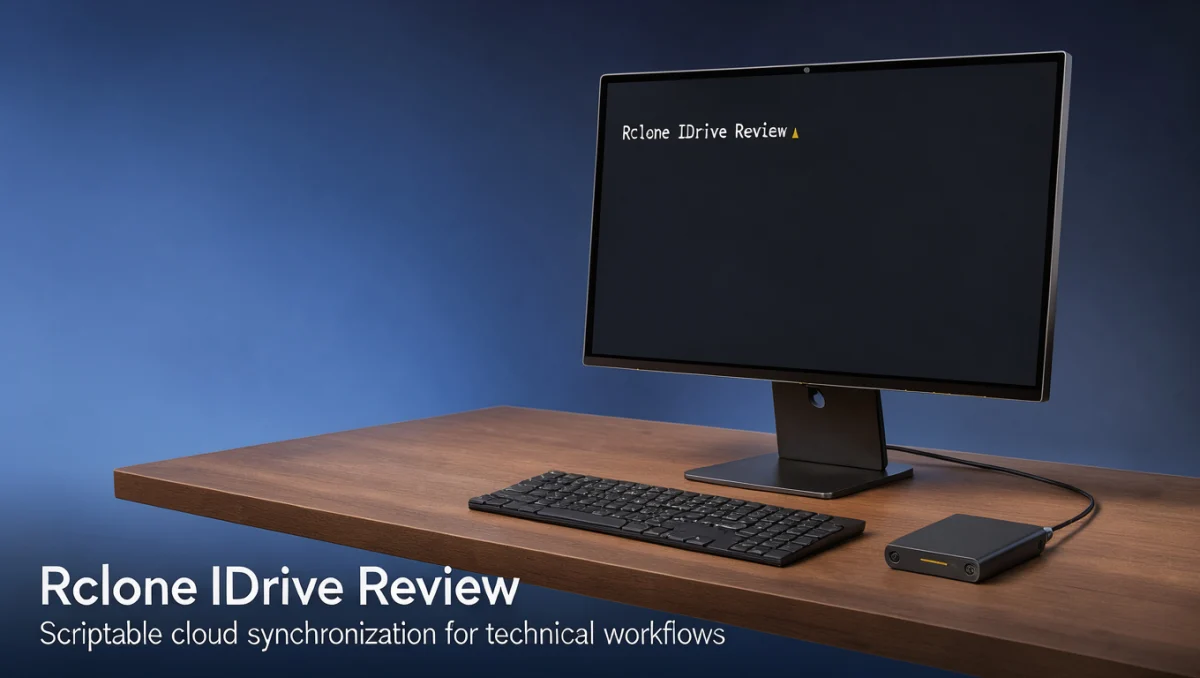
Pairing Rclone with IDrive gives technical teams a way to push data into cloud storage without touching a graphical client. Instead of dragging folders through a web dashboard, administrators write scripts that define what moves, when it moves, and how it is verified. This assessment, from EBusiness Reviews, looks at how the combination handles data mobility, day-to-day overhead, and long-term storage planning.
Software in the Collaboration & Productivity space is easiest to judge by how it behaves on an ordinary working day rather than by its marketing copy. Running an automated transfer pipeline demands clear administrative planning, reliable endpoint checks, and a sense of where command-line sync fits within a wider backup routine.
Quick verdict: The setup earns an EBusiness Reviews score of 7.7/10. It suits technical users who need script-driven remote synchronization across cloud buckets. It is a poor match for anyone who wants a simple visual interface or a consumer backup wizard that works out of the box.
| Metric | Summary |
|---|---|
| EBusiness Reviews score | 7.7/10 |
| Best for | System administrators and engineers who need automated remote synchronization |
| Not ideal for | Solo users looking for a visual tool for basic desktop syncing |
| Key strengths | Flexible command-line control, automatic scheduling, scriptable storage handling |
| What to check before buying | Confirm storage compatibility and account transfer rules in the official documentation |
1. How EBusiness Reviews Assessed Rclone IDrive
This review covers what Rclone IDrive is designed to do, who it is meant for, and how it stacks up against similar tools. We judged it on seven criteria: features, ease of use, pricing and value, integrations, audience fit, support, and competitive position. Plans, prices and limits change frequently, so we flag what to verify on the official website before purchase. This article was researched and drafted with AI assistance, then reviewed and edited by the EBusiness Reviews Editorial Team.
2. What Rclone IDrive Is and Who It Serves
Rclone IDrive refers to using the open-source Rclone command-line tool alongside IDrive cloud storage. The combination moves, synchronizes and archives directories to remote targets from a terminal or background script. Instead of uploading files manually, administrators schedule synchronization jobs in code.
The main audience is system administrators, developers, technical operators and advanced home-lab users. These people need detailed control over sync intervals, bandwidth limits and directory comparisons across remote endpoints. Teams weighing an rclone idrive workflow usually want unattended execution, which makes terminal control more practical than a graphical background client.
Organizations holding sensitive archives or large media libraries often use this setup to keep secondary copies of their data. It is aimed at technical environments where scripts handle directory mirroring without ongoing manual work.
3. Core Features of Rclone IDrive
The operational value of this setup comes from command-line file handling paired with scalable remote object storage. When evaluating it as part of an EBusiness Reviews recommended architecture, buyers should weigh practical operating capabilities rather than a checklist of features.
3.1. Command-Line Synchronization and Transfer
Rclone offers terminal commands that synchronize local file systems directly with remote cloud targets. Users run bidirectional transfers, one-way mirroring, or directory copies using flags that control timestamps and folder structure. The tool compares source and destination files so that only changed data is transferred, which keeps routine synchronization from consuming unnecessary bandwidth.
3.2. Automated Directory Mirroring and Scheduling
Unattended operation is central to a terminal-driven storage setup. Administrators pair the transfer utility with operating system task schedulers to run synchronization at fixed intervals. Critical directories can then be copied to remote buckets overnight or during maintenance windows without anyone staying logged in to the console.
3.3. Remote Path Management and Integrity Checking
The tool includes commands to audit remote directories, confirm transferred files through checksum comparison, and remove obsolete versions. Operators can produce dry-run reports before any destructive sync runs, giving technical teams oversight of remote repository state and directory listings from the command prompt.
4. Ease of Use and Learning Curve
Command-line storage management trades accessibility for configuration precision. Because the setup runs entirely through terminal interfaces and text configuration files, onboarding requires comfort with command syntax, path declarations and environment variables.
New administrators need time to understand how remote targets are defined and authenticated in the configuration file. Setting up an endpoint means entering storage credentials, choosing the correct endpoint and defining default synchronization parameters. Experienced terminal operators will find this routine, while people new to shell scripting may hit an early obstacle.
Once configured, daily use becomes simple through saved aliases or automated scripts. Diagnosing network timeouts or conflicting flags, however, calls for a methodical reading of terminal logs. The learning curve is moderate for general office staff and low for experienced systems administrators.
5. Pros and Cons
Knowing both the strengths and operational limits of this technical configuration helps teams make realistic software decisions.
5.1. Operational Strengths
- Scriptable automation allows scheduled synchronization without monitoring a dashboard.
- Fine-grained terminal flags give precise control over overwrites and bandwidth use.
- Checksum validation confirms that transferred directories match their source structure.
- Low resource overhead allows it to run on modest hardware without a graphical display server.
5.2. Operational Constraints
- The lack of a native visual dashboard requires comfort with command-line interfaces.
- Incorrect sync flags can delete files on the remote endpoint if they are not tested first.
- Configuration errors must be diagnosed through shell logs and documentation rather than on-screen prompts.
6. Rclone IDrive vs Similar Tools
Comparing this configuration with other cloud sync tools shows how different backup and migration products are designed.
Alternatives such as Duplicati provide a local web-based graphical interface for scheduled backup archives, suiting users who want scheduled protection without entering terminal commands. Duplicati emphasizes packaged backup management with incremental version menus, whereas the Rclone setup prioritizes direct directory synchronization and flexible remote protocol handling.
Cyberduck is another common comparison. It offers a visual desktop client for browsing and transferring files to cloud repositories, serving operators who want manual drag-and-drop access. Rclone is stronger for scriptable, unattended terminal workflows. Teams should pick based on whether their staff prefers a graphical desktop experience or programmatic automation.
7. Who Should Use Rclone IDrive
Different roles and technical backgrounds will find varying value in a terminal-based storage workflow.
7.1. Freelance Developers and Technical Consultants
Independent developers who manage local code repositories, media libraries or client staging folders benefit from scriptable off-site backups. Building transfer routines into standard deployment scripts makes the setup practical for technical solo operators.
7.2. Small Business IT Administrators
Small teams with in-house system administration skills can maintain remote mirrors of critical file shares without buying expensive enterprise backup software. It suits teams that value transparent configuration files and predictable shell execution.
7.3. Non-Technical Office Teams
Office workers, administrative assistants and creative staff without command-line experience should avoid this setup. They will find the absence of a desktop sync tray or visual restore wizard frustrating and should choose conventional desktop client software instead.
8. How to Choose the Right Plan
Cloud storage providers organize their offerings around capacity tiers and data management features. Buyers should check how expected transfer volumes fit each plan's policies before committing to a subscription.
| What to check | Why it matters |
|---|---|
| Data retention and revision policies | Storage services handle older file revisions differently, which affects total consumption over time. |
| Concurrent connection rules | Transfer tools open parallel streams that must stay within provider rate guidelines. |
| Egress and transfer volume policies | Some plans apply variable conditions to downloads, which affects restoration planning. |
| API and protocol access rights | Confirm on the official vendor website that the chosen account tier allows third-party tool connections. |
9. FAQ
How do I know if a command-line storage workflow fits my team?
It fits if your staff is comfortable working in terminal shells, writing shell scripts and reading server logs. Teams without system administration skills should consider consumer applications with visual dashboards to avoid friction in daily use.
What should I budget for besides the storage subscription?
Beyond the subscription, budget for the administrative time needed to build, test and maintain transfer scripts. Regular audits of automated routines and verification of recovery procedures are essential internal investments and should be included in your planning.
Should I test transfer scripts before scheduling unattended jobs?
Yes. Dry-run checks and test runs on sample folders are essential before scheduling unattended automation. Command-line sync tools execute overwrite and delete operations strictly according to their input parameters, so careful script validation is a necessary safeguard against accidental data loss.
How can teams prevent accidental file deletions during synchronization?
Test commands with flags that simulate transfers without changing files, and choose mirror options that do not delete destination files by default. Restrictive permissions on destination buckets also protect archived files from unintended changes.
10. Final Verdict
| Criterion | Score /10 | Reason |
|---|---|---|
| Features | 8.5 | Comprehensive command-line sync controls and flexible directory management. |
| Ease of Use | 6.5 | Terminal-only interaction creates an unavoidable learning curve for non-technical users. |
| Pricing and Value | 7.5 | Value depends on checking current capacity tiers against the vendor's plan terms. |
| Integrations | 8.0 | Standard protocol connections work smoothly across compatible cloud backends. |
| Audience Fit | 8.5 | Highly suitable for technical operators and appropriately unsuitable for users who need a visual interface. |
| Support | 7.0 | Relies on community documentation, vendor knowledge bases and manual troubleshooting. |
| Competitive Position | 8.0 | A dependable choice for scriptable transfers compared with graphical consumer alternatives. |
Overall score: 7.7/10
Rclone IDrive is a capable, scriptable option for organizations that value automated directory synchronization over graphical interfaces. Technical operators will appreciate precise control over transfer parameters, while non-technical users should look for conventional visual backup clients. For help evaluating business software, contact the EBusiness Reviews team at ebusinessreviews.net.