
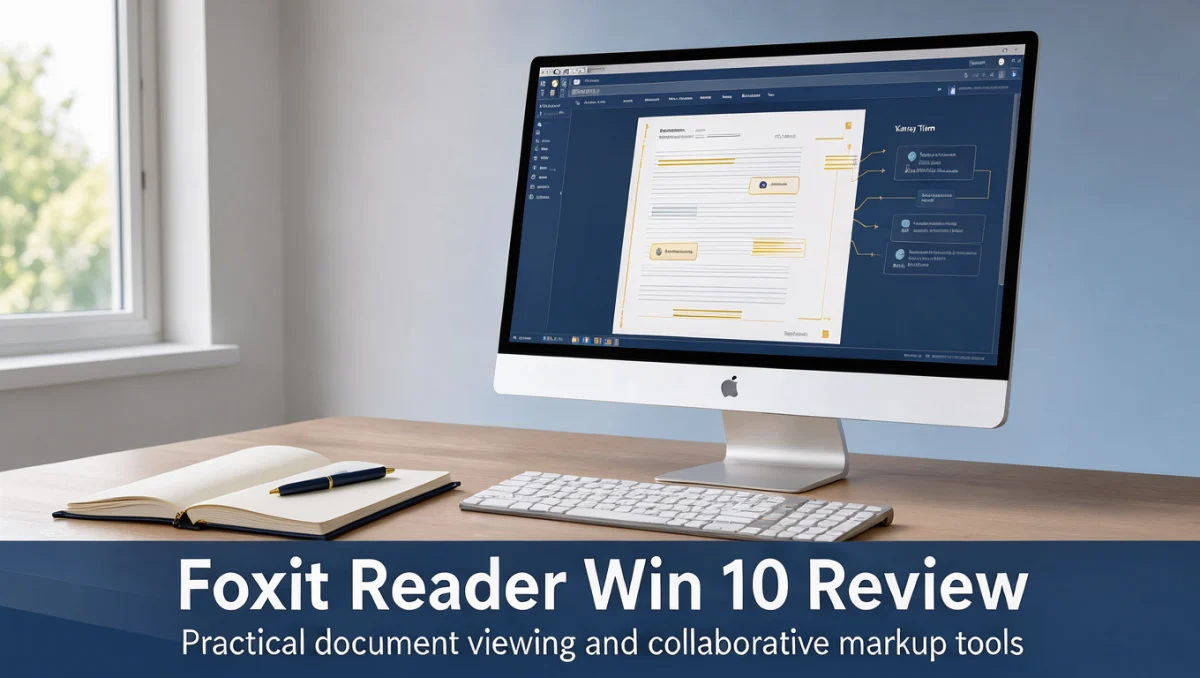
Before diving in, a quick note: ebusinessreviews may earn a commission when you buy through links on this page, at no extra cost to you, and this does not influence our ratings. If you are weighing a desktop PDF reader for everyday office work, foxit reader win 10 is one of the more frequently compared options, and this guide walks through what it does well and where it falls short.
Reading and marking up documents is a routine part of most workdays, from reviewing contracts to filling in administrative paperwork. A dedicated reader that opens files quickly, handles comments cleanly and keeps form data intact can remove a surprising amount of friction. Below, we break down the core capabilities, the trade-offs and the buying factors that matter before you commit a workstation to it.
1. How ebusinessreviews Evaluated the Software
We assessed this reader against seven criteria: features, ease of use, pricing and value, integrations, audience fit, support and competitive position. Plans, prices and usage limits change regularly, so treat the observations here as a starting point and confirm current terms on the official website. This article was researched and drafted with the help of AI tools, then reviewed and edited by the ebusinessreviews Editorial Team.
2. What Foxit Reader Does and Who It Suits
Foxit Reader is a desktop application from Foxit Software built to open, view, print and annotate PDF files. Its focus is on clean rendering and practical markup tools for people who handle electronic paperwork on standard Windows machines, rather than on building documents from scratch.
The software is aimed at knowledge workers, students, legal clerks and corporate staff who regularly review contracts, study material and technical documentation. Teams that standardize on Collaboration & Productivity tools usually look for readers that open files without noticeable delay and offer reliable commenting for review cycles.
Unlike creative design software or full authoring suites, this tool concentrates on reading, marking up and completing forms. Recognizing that distinction helps you decide whether standard viewing capability is enough or whether you need a heavier document creation program.
3. Core Features of a Document Reader
The features that matter most in a reader are the ones that shape how efficiently teams review and exchange feedback on important records.
3.1. Viewing and Navigation
Navigation tools let you scroll through multi-page files, use structural bookmarks and jump between sections without lag. Keyword search helps you locate clauses or figures across long reports, while thumbnail panels make it easier to move around complex layouts.
3.2. Annotation and Collaborative Markup
Reviewers depend on annotation to give clear feedback during editing and approval. Typical tools include highlighting, strikethrough, underlining, sticky notes and freehand drawing. Keeping this feedback on the source document, rather than in separate email threads, makes it easier to track decisions.
3.3. Interactive Form Completion
Forms remain essential for administrative, academic and corporate paperwork. Interactive fields accept text, checkbox selections and signature placeholders, which reduces printing and speeds up routine data collection across departments.
3.4. Printing and Export
Printing should preserve layout so files reach paper or virtual printers without distorted margins. You can typically select page ranges, adjust scaling and choose monochrome or colour output to match archival standards, which helps keep layouts consistent as files move between workstations.
4. Ease of Use and Learning Curve
The interface follows familiar productivity-software conventions, with primary functions arranged in ribbon menus and collapsible sidebars. People coming from standard office suites will usually find their way around quickly, since zoom controls, page navigation and comment lists sit in predictable places. That familiarity reduces onboarding time when a tool is rolled out across many desks.
The main learning effort is in discovering secondary annotation tools and adjusting display preferences such as continuous scrolling and comment layers. Most users pick these up with little practice. In our experience, interface consistency is one of the strongest factors in cutting support requests during company-wide deployments.
5. Pros and Cons
Weighing the advantages against the limits helps set realistic expectations for an office rollout.
5.1. Advantages
- Fast rendering that makes it quick to move through lengthy reports and reference guides.
- A full annotation toolset with highlights, notes and shape markups for clear editorial feedback.
- Dependable interactive form handling that supports digital administrative workflows.
- A familiar ribbon-style layout that keeps staff training requirements low.
5.2. Limitations and How to Manage Them
- Advanced page restructuring is limited compared with dedicated publishing suites, so heavy layout work will need separate software.
- The menus can feel dense for casual readers who only scroll, which you can offset by configuring a simplified viewing bar.
- Commercial terms and deployment rules vary, so administrators should confirm licensing directly on the vendor portal before buying.
6. How It Compares with Similar Tools
Adobe Acrobat Reader is the long-established reference point for reading and printing electronic documents, and many organizations choose it when legacy compatibility is a formal requirement. Sumatra PDF targets users who want a very lightweight program that opens files instantly, though it omits deeper collaboration and interactive markup. Nitro PDF focuses on the full document lifecycle, pairing reading with conversion and administrative publishing tools for corporate settings.
This reader sits between these positions: it offers responsive reading performance along with rich annotation and form tools, without the overhead of heavy desktop authoring packages. That balance suits teams that need practical collaborative markup.
7. Who Should Use It
7.1. Corporate Administrative Teams
Staff handling invoices, employee records and compliance forms benefit from reliable form handling and annotation. A standard viewer lets departments review contracts, add procedural notes and route paperwork without formatting problems.
7.2. Students and Researchers
Those reading papers, textbooks and lecture material will find bookmark navigation and highlighting useful. Annotating excerpts and exporting summaries supports thorough revision without heavy software.
7.3. Legal and Consulting Professionals
Consultants auditing agreements and policy documents rely on search and margin notes to track key terms. Shared markups help build internal agreement before recommendations go to external partners.
7.4. Who Should Look Elsewhere
Creative directors, typographers and print publishers building magazines or complex marketing collateral need dedicated vector and layout tools rather than a reader. Users who only open the occasional one-page notice can often rely on the operating system's default viewer.
8. How to Choose the Right Setup
Match your choice to organizational scale, functional needs and deployment effort. Use this checklist when comparing options.
| What to Check | Why It Matters |
|---|---|
| Deployment type and workstation support | Confirms the installer fits your centralized IT rollout and existing operating environment. |
| Commercial licensing terms | Ensures compliance across single machines, multi-user offices and corporate networks. |
| Annotation and markup requirements | Verifies staff have the commenting, highlighting and drawing tools they need for daily collaboration. |
| Form management capabilities | Determines whether staff can reliably complete, save and submit interactive forms. |
| Support and maintenance | Confirms help resources are available when workstation problems occur. |
9. Frequently Asked Questions
9.1. Is basic viewing software enough for an office?
It depends on whether staff mainly read, sign and review files or need to rebuild text, edit vector layouts and restructure pagination. If daily work centres on reading, signing and reviewing records, a standard reader meets the requirement without extra complexity.
9.2. What should buyers check in licensing?
Review how the vendor defines commercial use, per-user installs and network deployment on its official licensing page. Knowing whether access is tied to individual machines or organizational accounts prevents compliance gaps and keeps IT budgeting accurate as teams grow.
9.3. Why does form handling matter when choosing a PDF reader?
Interactive forms underpin much of modern HR, accounting and compliance work. Software that accurately captures text, supports checkboxes and preserves data on save avoids lost records and reduces reliance on printed copies.
9.4. How should an enterprise plan a multi-workstation rollout?
IT managers should consult the vendor's installation guide for silent-install options, configuration switches and centralized updates. Checking these before buying licences helps ensure a uniform installation without disrupting ongoing work.
10. Final Verdict
Choosing a document utility means balancing reading speed, functional range and long-term deployment cost. The table below summarizes how the software performs against our assessment criteria.
| Criterion | Score /10 | Reason |
|---|---|---|
| Features | 8.5 | Practical reading tools, responsive search, text markup and reliable form completion. |
| Ease of Use | 8.5 | A familiar ribbon interface that minimizes training time during adoption. |
| Pricing and Value | 8.0 | Requires checking vendor terms against workstation budgets. |
| Integrations | 7.5 | Works as a standalone tool, so compatibility with internal storage should be confirmed. |
| Audience Fit | 8.5 | Fits the everyday needs of administrative staff, students and knowledge workers. |
| Support | 7.5 | Documentation and help channels should be reviewed on the official portal for response expectations. |
| Competitive Position | 8.2 | An established, responsive viewing and annotation option alongside traditional alternatives. |
Overall Score: 8.1/10
For individual professionals, students and corporate departments that need a dependable application to read reports, complete administrative forms and collaborate through markups, this reader is a capable and structured choice. Organizations with heavy document creation or vector illustration needs should evaluate dedicated authoring tools for those tasks.
Have questions about choosing productivity software for your team? Contact us at https://ebusinessreviews.net/contact/ or follow ebusinessreviews on LinkedIn at https://www.linkedin.com/company/ebusinessreviews/ for ongoing workplace technology analysis.
See More EBusiness Reviews