

Running a virtual private server through a graphical control panel can cut down on routine administration work considerably. Here, we revisit how to manage a VPS with Plesk, covering preparation, setup steps, ongoing care, and the errors worth avoiding. For a broader look at how automation fits into modern infrastructure, explore our Artificial Intelligence coverage.
Preparing Your Environment Before Installation
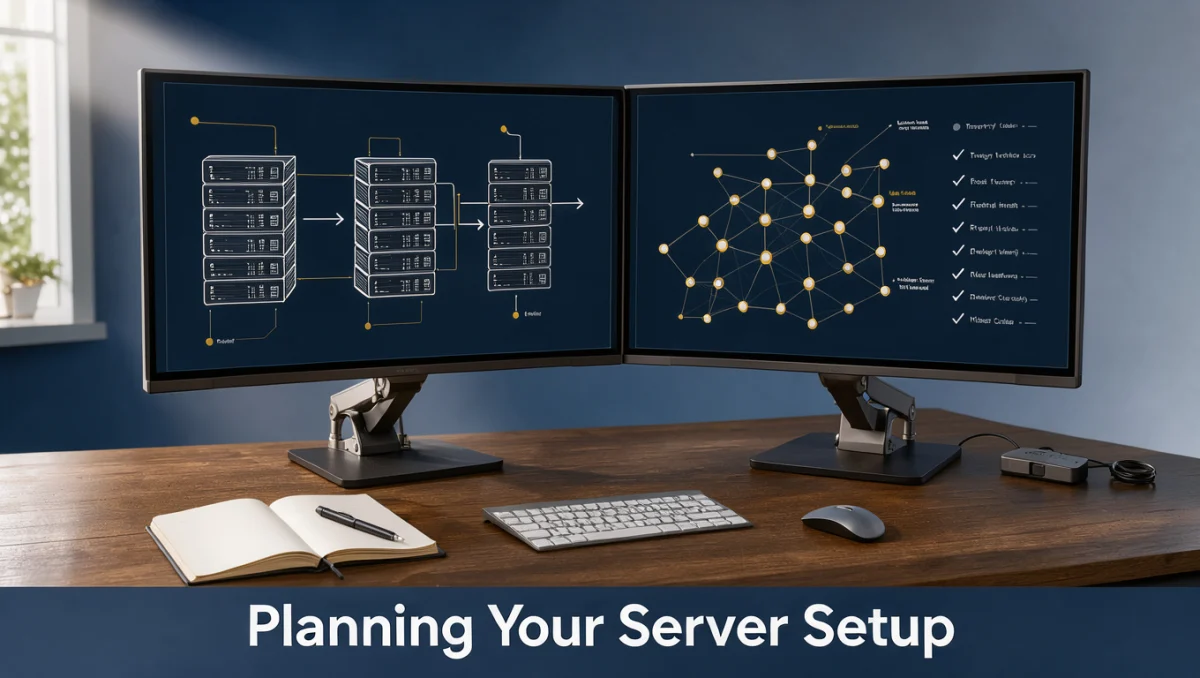
Start by deciding what the server is for. A VPS is essentially a virtual machine carved out of physical hardware, with its own CPU cores, memory, and storage. Plesk then sits on top of the operating system as a management layer, so the base system choice matters. Plesk supports both Linux and Windows Server, which is a practical advantage for teams that run ASP.NET alongside PHP or static sites.
Next, size the resources. The panel itself consumes memory and processing power for its services, interface, and monitoring tasks. Confirm the baseline requirements with your provider and compare them against expected traffic, database growth, and the number of applications you plan to host.
| Preparation Item | What to Decide | Why It Counts |
|---|---|---|
| Operating system | Linux distribution or Windows Server | Sets which runtimes and frameworks you can use |
| Resource sizing | CPU cores, RAM, and disk capacity | Keeps the panel and your sites from competing for memory |
| Domain plan | How many domains and subdomains you will host | Influences license needs and directory layout |
| DNS approach | External DNS provider or local nameservers | Shapes zone settings and record maintenance |
Step-by-Step Setup Workflow
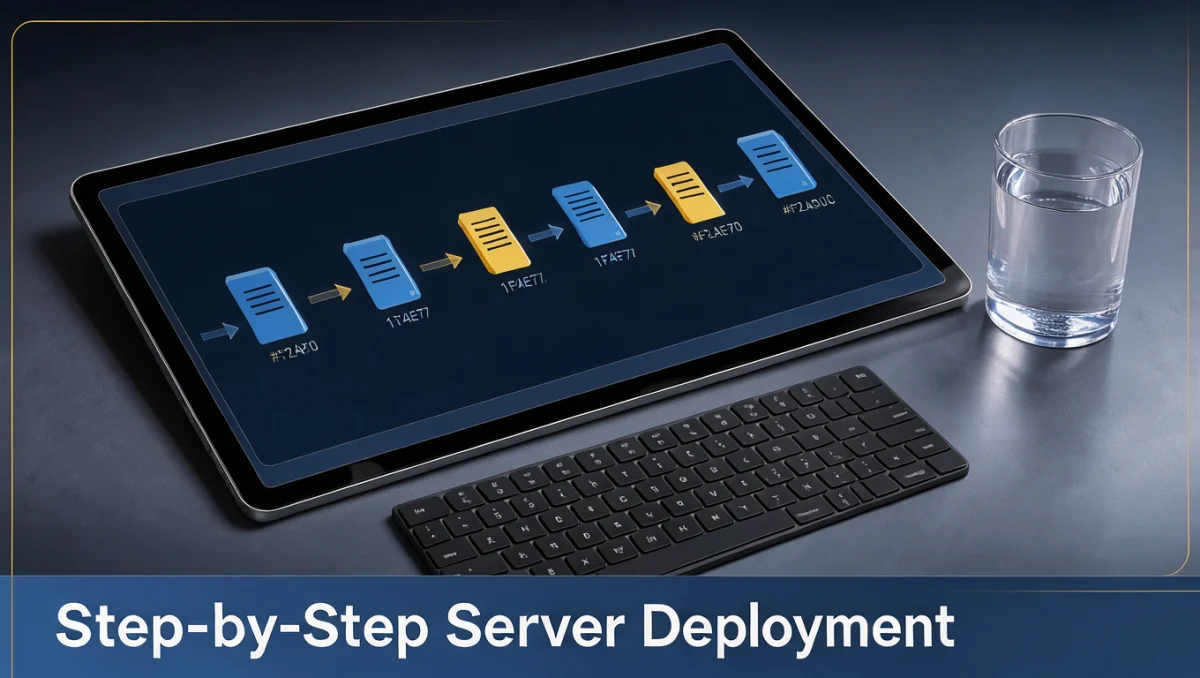
Following a fixed sequence keeps the server predictable and makes handover between team members much easier.
- Sign in and complete onboarding. Log in with the credentials issued at installation, set a permanent administrator password, add contact details, and enter your license key.
- Configure hostname and network. Assign a fully qualified domain name to the server and confirm the static public IP. Set reverse DNS so that outside networks recognize mail and web traffic coming from the machine.
- Organize domains into subscriptions. Group projects into subscriptions, each with its own bandwidth, storage, and database limits. This separates client sites and development stages cleanly.
- Provision databases and deploy applications. Create databases, assign user credentials, and upload site files via secure file transfer, a source repository, or an archive installer.
- Finish mail and DNS records. If you host email locally, create mailboxes, set quotas, and add SPF and DKIM records. If mail runs through an external suite, point the MX records to it in the DNS zone editor.
Working through these stages in order keeps each site's configuration separate and reduces the risk of accidental changes across directories during routine development.
Ongoing Administration Best Practices
Long-term stability depends on steady maintenance. Schedule regular checks of operating system packages and panel updates, and confirm a rollback path before patching production systems. Web stacks depend on several interlinked components, including web daemons, database engines, and language interpreters, so a single update can ripple through the others.
Permission management is equally important. Plesk supports layered administrative roles, which separate root-level system control from domain-level webmaster access. Giving non-administrative staff only the permissions they need prevents accidental server-wide changes while still letting content teams manage their own directories and databases.
- Schedule backups to both local storage and a remote location to protect configuration data.
- Set up automated alerts for disk usage and memory thresholds.
- Require multi-factor authentication for all administrator, reseller, and customer accounts.
- Review inactive domains and old staging environments regularly to free disk space and reduce exposure.
- Compare hosting platforms and add-ons using independent reviews before committing to a setup.
Common Mistakes to Avoid
Small misconfigurations made early can grow into serious performance or security problems. The most frequent ones are worth knowing in advance.
Leaving administrative access on default settings without multi-factor verification is one of the most serious oversights in VPS management.
Another common problem is letting logs and database journals grow without limit. A virtual disk has a fixed ceiling, and once it fills, database services can stop unexpectedly. Automated log rotation and storage alerts prevent this kind of outage.
Running heavy development environments alongside production sites on the same instance, without resource limits, can also degrade performance for live visitors. Separating demanding workloads onto their own instances or enforcing subscription ceilings keeps production stable.
| Common Mistake | Likely Impact | Preventive Step |
|---|---|---|
| Skipping automated log rotation | Full disk leads to database shutdown | Set log compression, rotation schedules, and storage alerts |
| Sharing one administrator login | No audit trail and greater credential exposure | Create separate user accounts with role-based permissions |
| Relying only on local snapshots | Data loss after hardware or storage failure | Automate off-site backups to isolated storage |
| Unrestricted directory permissions | Application scripts may modify root configuration files | Enforce strict ownership and isolated execution users |
Frequently Asked Questions
How does a control panel simplify VPS management?
A web hosting control panel replaces many manual configuration-file edits with a visual interface. Administrators can create virtual hosts, manage database users, install security certificates, and monitor server health from organized dashboards, which saves setup time and reduces errors.
What should buyers check about Plesk licensing before purchasing?
Verify the current licensing structure on the official Plesk website. Plans usually differ by domain capacity, target user type, and feature modules. Check renewal pricing, domain limits, and whether your VPS provider bundles the license.
How should administrators estimate resources for a control panel?
Review the minimum overhead the vendor publishes and compare it with your planned workload. The panel needs baseline memory and CPU to run its services. Choosing hardware with enough headroom keeps the interface responsive and prevents competition with production traffic.
Should businesses consult specialists before choosing server software?
An experienced systems engineer or hosting specialist can help assess architecture, expected concurrency, compliance requirements, and backup redundancy. Professional input helps avoid under-provisioned hardware and ensures the chosen workflow matches your team's technical skills.
Final Verdict on Managing a VPS with Plesk
Plesk offers a practical balance between administrative depth and day-to-day usability. For teams that need organized domain management, support for both Linux and Windows environments, and streamlined application hosting, it is a mature and capable control interface.
| Criterion | Score / 10 | Reason |
|---|---|---|
| Features | 8.5 | Broad toolset covering multiple web stacks, databases, and domain administration |
| Ease of use | 8.0 | Graphical workflows replace many routine command-line tasks |
| Pricing and value | 7.0 | Licensing adds recurring cost; confirm tiers and renewal rates on the official site |
| Integrations | 7.5 | Supports standard web stacks, frameworks, and external storage modules |
| Audience fit | 8.0 | Well suited to agencies, freelancers, and small businesses managing several sites |
| Support | 7.0 | Assistance depends on license channel; confirm availability with your provider |
| Competitive position | 8.0 | Balanced alongside alternatives such as cPanel, with strong Windows and Linux coverage |
Overall score: 7.7 / 10
Recommendations by user group:
- Freelancers and solo developers: A good fit for running several client sites without maintaining manual configuration scripts.
- Digital agencies: Strong for managing client sites through separate subscriptions, keeping customer assets isolated.
- Small business IT teams: Useful for managing web properties without full-time Linux engineers.
- Terminal-focused operators: Teams that run everything through automated orchestration or pure command-line workflows may prefer a panel-free setup to avoid the overhead.
Have questions about VPS tools or control panel options? Reach out through the EBusiness Reviews contact page or follow EBusiness Reviews on LinkedIn for updates on hosting and software evaluation.
See More EBusiness Reviews